# Theme Requirements
To use Copygen, please make sure you are running WordPress 6 or higher, PHP 7.4 or higher, and MySQL 5.6 or higher. We have tested it with Mac, Windows. Besides, please check the recommended server configuration for proper theme functioning: Our Recommended Version above wordpress 5.5 and php 7.4.
Minimum server configuration
- PHP version - 7.4 and higher
- MySQL version - 5.6 or higher
- memory_limit – 512M
- max_execution_time – 1000
- max_input_time – 300
- upload_max_filesize – 216M
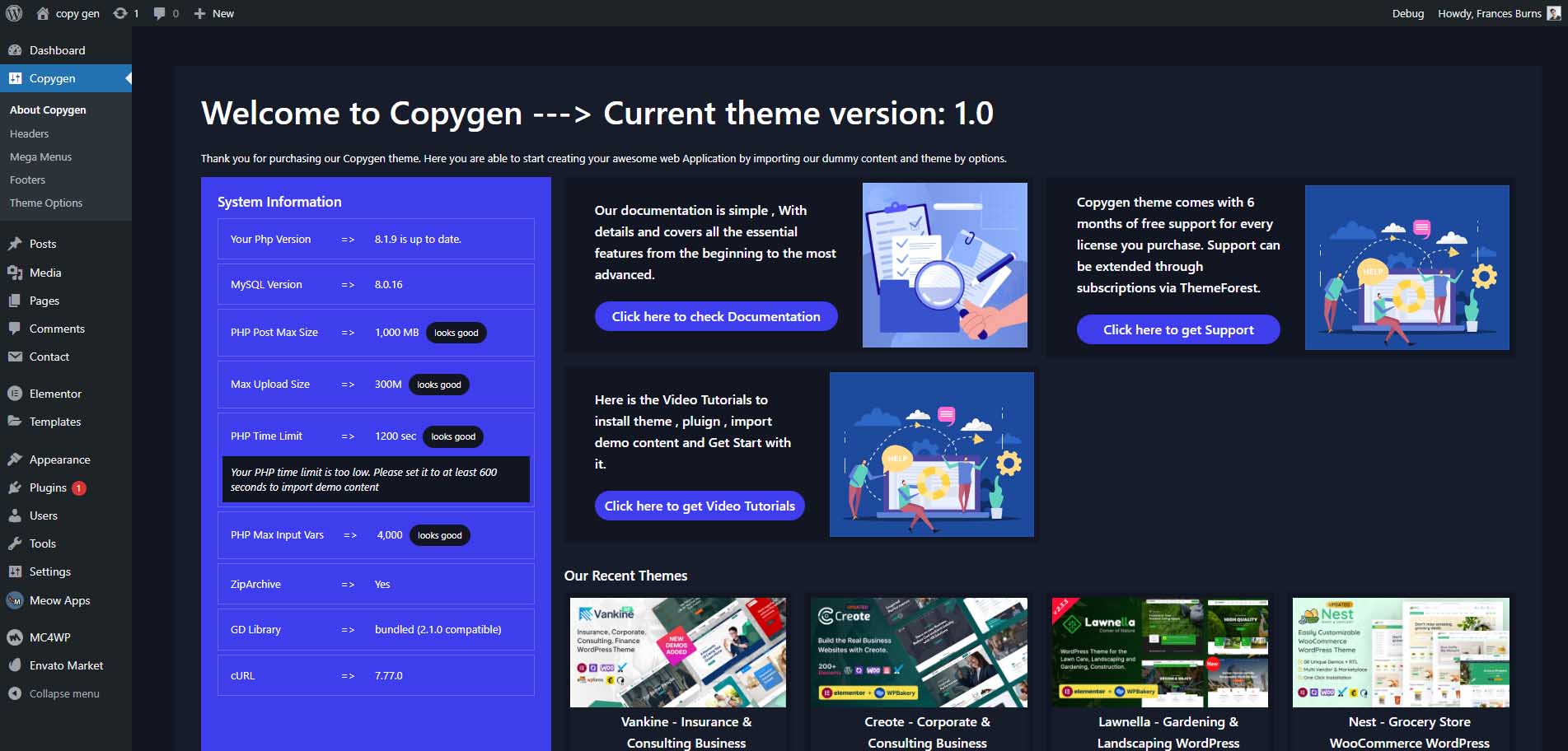
Or Check your server Configuration on your Wordpress Dashboard -> Go to Copygen -> About Copygen
# Files Included in Copygen Package
Files Included in Packages
- Copygen.zip , Copygen-child.zip This is the Theme You want To use to build site.
- Documentation : This Folder Contains Docmentation Link
- Demo-content : This Folder contains demo data files For Impot Dummy Content
- Elementor Templates : We Added Home Pages 1 to 5 as a Elementor templates So you can import these pages.
- Licensing : This folder contains coygen theme License.
- Theme-core-plugin : This folder contains coygen Core pluign.
- copygen Icons : This folder contains coygen Copygen icons We used in our theme.
- Envatomarket Pluign : This pluign used to get updated theme on your wordpress dashboard
# Theme Upload And Activation
There are 2 ways to upload the theme. Please fallow the given steps.
Via Dashboard
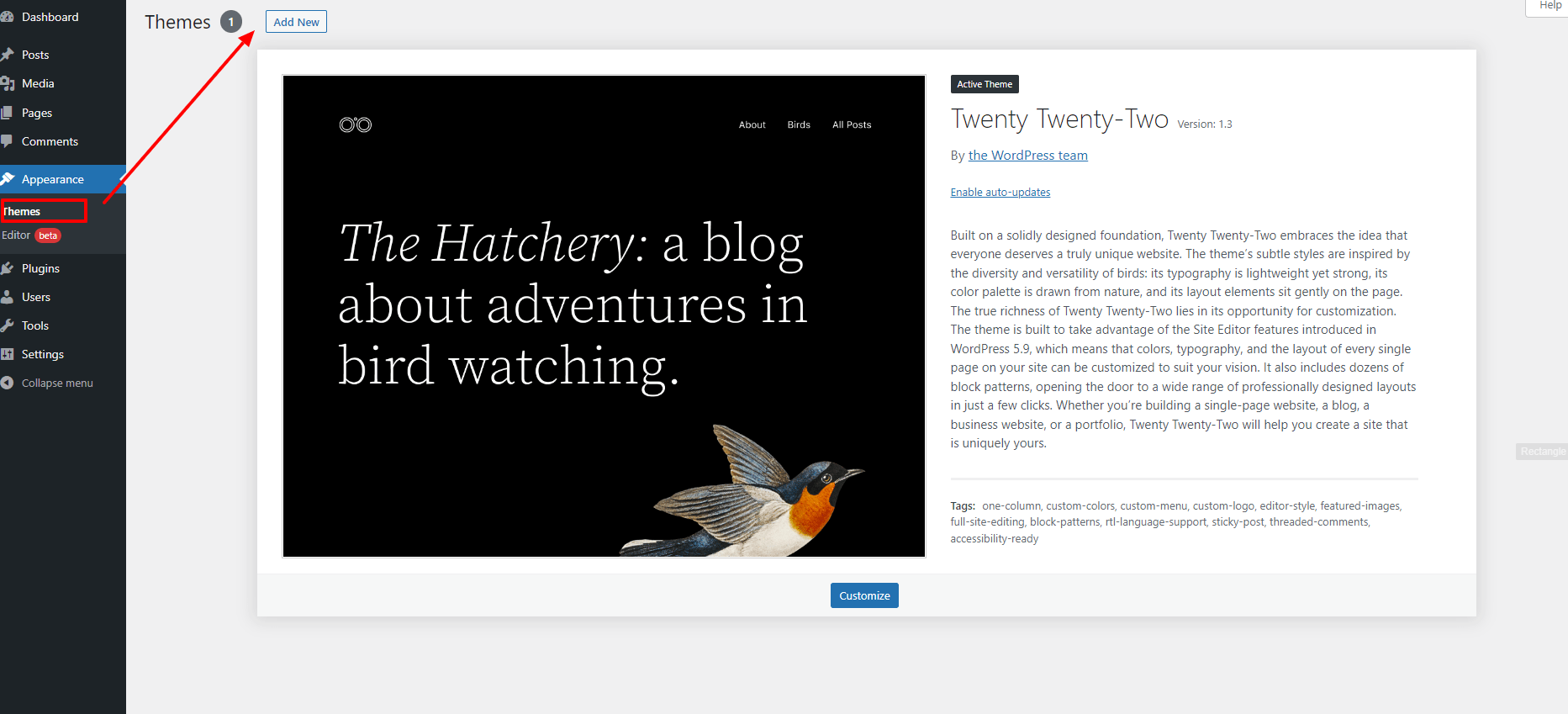
- Navigate to Appearance → Themes in your WordPress admin dashboard.
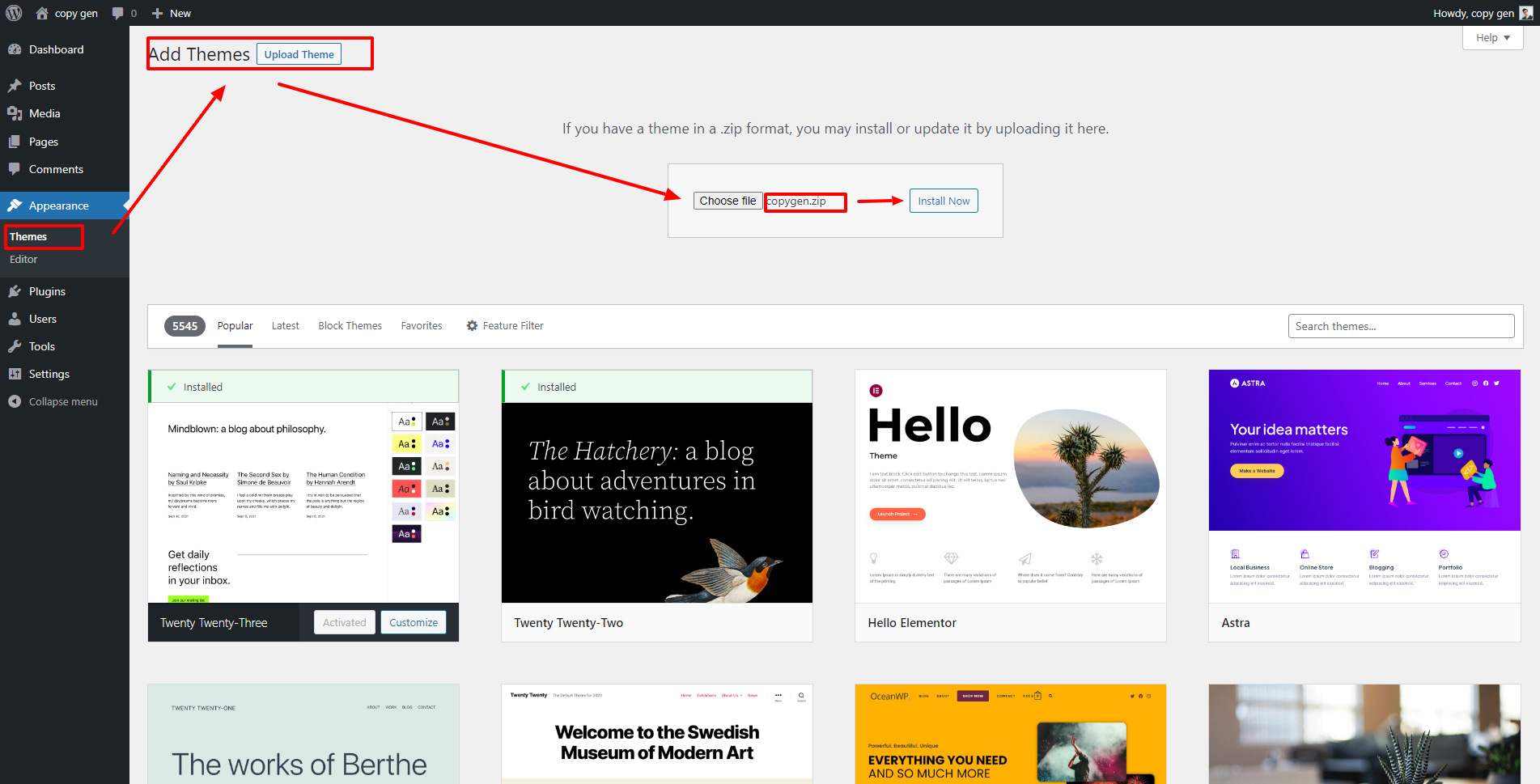
- Click the Add New button at the top of the page then go for the Theme Upload option.
- For the file upload, pick Theme Files / Copygen.zip in the theme package downloaded from ThemeForest and click Install Now.
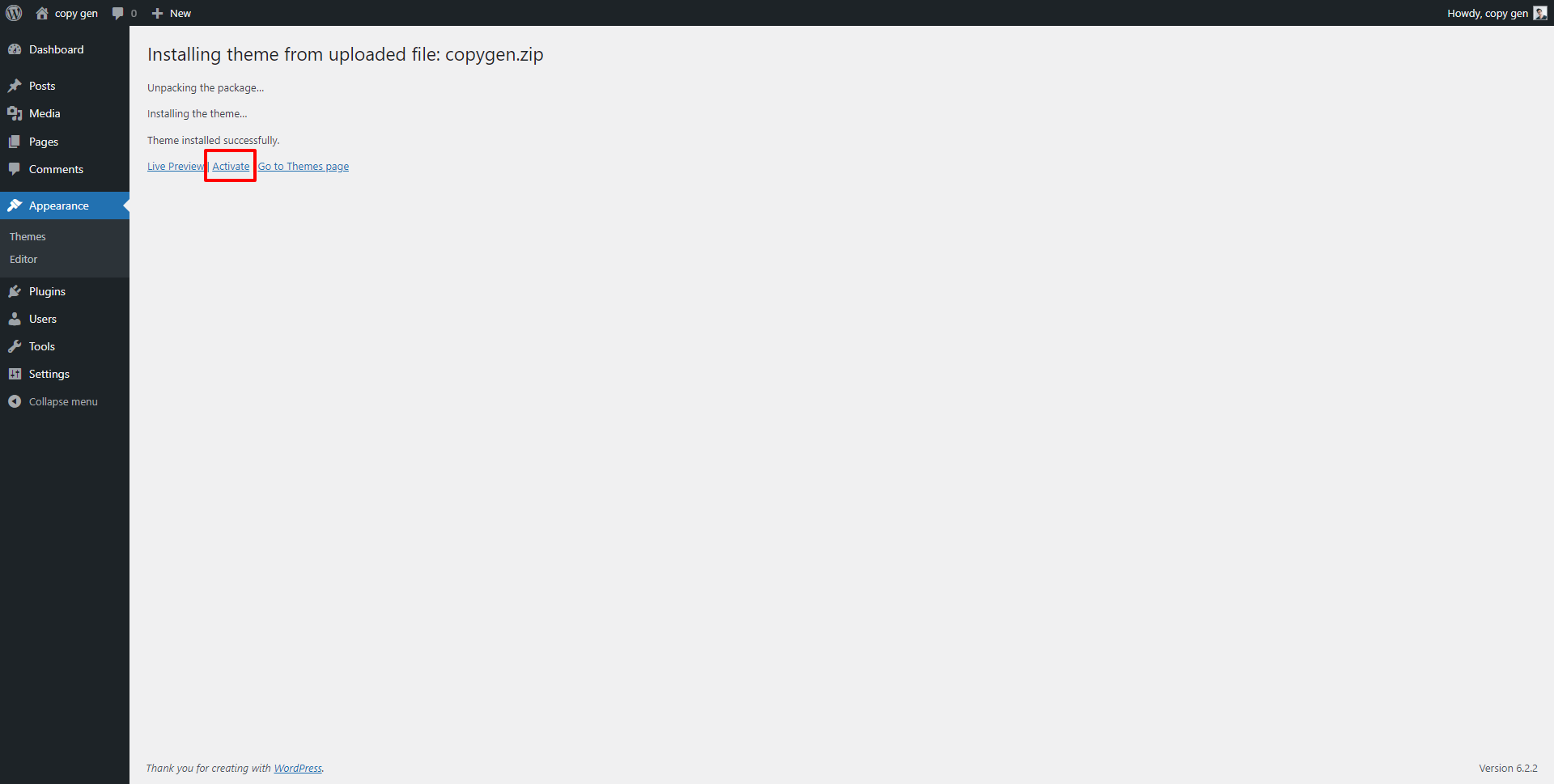
- Click Activate once the upload has finished and you're ready for the next step: Installing the Plugins.
Via FTP (Recommended)
- Extract the theme package downloaded from ThemeForest copygen-main-package.zip open the folder.
- Open any FTP aplication like Filezilla navigate to the directory of the Theme.
- For the file upload, pick Theme Files / Copygen.zip in the theme package downloaded from ThemeForest.
- Navigate to Appearance → Themes in your WordPress admin dashboard.
- Click Activate once the upload has finished and you're ready for the next step: Installing the Plugins.
# To Insall Plugins
After installing the Copygen theme, you'll see a notification in the top of the page that says the theme needs some plugins to function properly.
Required Plugins
Required plugins are very important and must be installed and activated at all times for Copygen to work properly. The Copygen theme requires following plugins
-
Copygen Addons: extra elements for Elementor. It was built for Copygen theme.
-
Elementor: is a popular WordPress page builder plugin that allows users to create custom web pages using a drag-and-drop interface. It's designed to make website building accessible to users of all skill levels, without the need for coding knowledge.
Recommended Plugins
Recommended plugins which are plugins that we use in our demos and are fully integrated with Copygen. You can choose not to install these plugins if you’re not going to use them. The Copygen theme recommends following plugins:
-
Contact Form 7: plugin for creating contact forms. It is free and available on WordPress.org
-
MailChimp for WordPress: helps you add more subscribers to your MailChimp lists using various methods.
-
AI Engine: ChatGPT Chatbot, Content Generator, GPT 3 & 4, Ultra-Customizable
Copygen is working perfectly with these plugins. It automatically adds more styles to them to make the design match the theme.
Install These Plugins
- Step 1 – Click to Begin installing plugins at the top of the page Or Go to Appperance -> Install plugins

- Step 2 – Check boxes to select all the plugins you want to install and click on Install from the dropdown box and then click the button Apply.
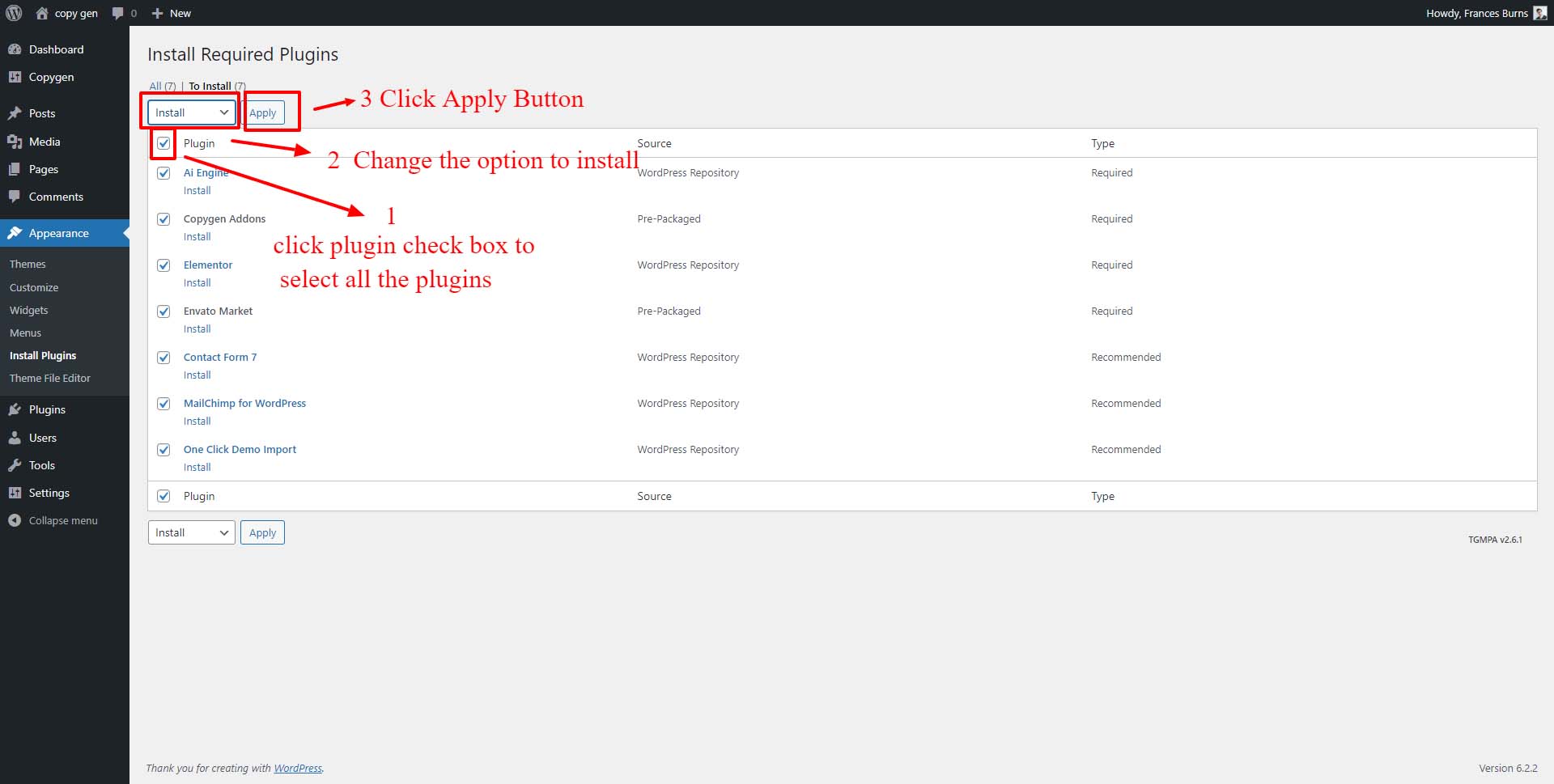
- Step 3 – After you have installed all the plugins, click on Return to Required Plugins Installer.

- Step 4– Select the plugins you installed, and apply the bulk action to activate.

Troubleshooting
Failed to install/activate some plugins
Sometimes, the download process failed on some hostings and some files are not downloaded. Therefore, you can't active it. Please navigate to Plugins > Installed Plugins and delete those plugins. Then install them again.
# To Import Demo Content
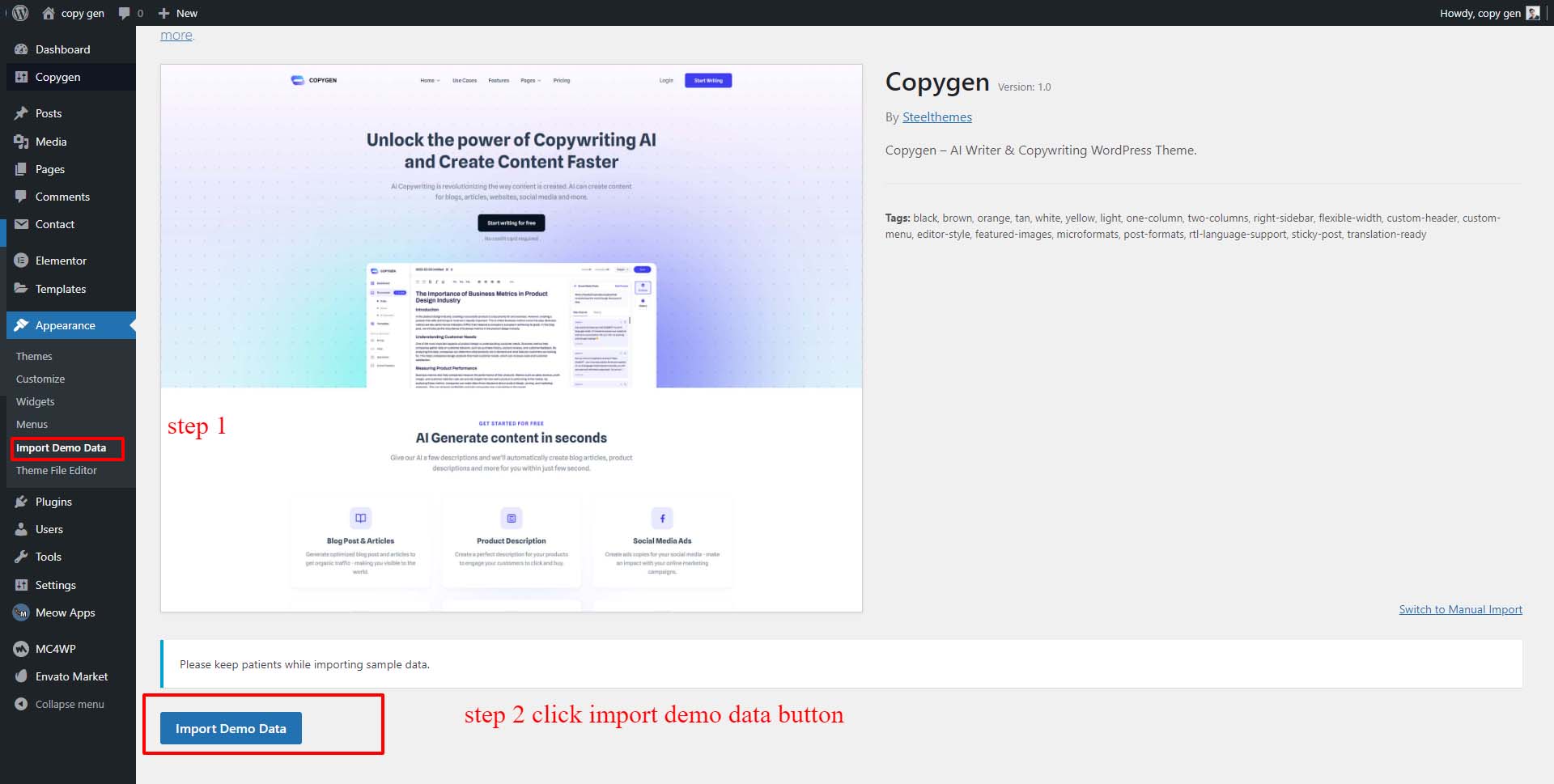
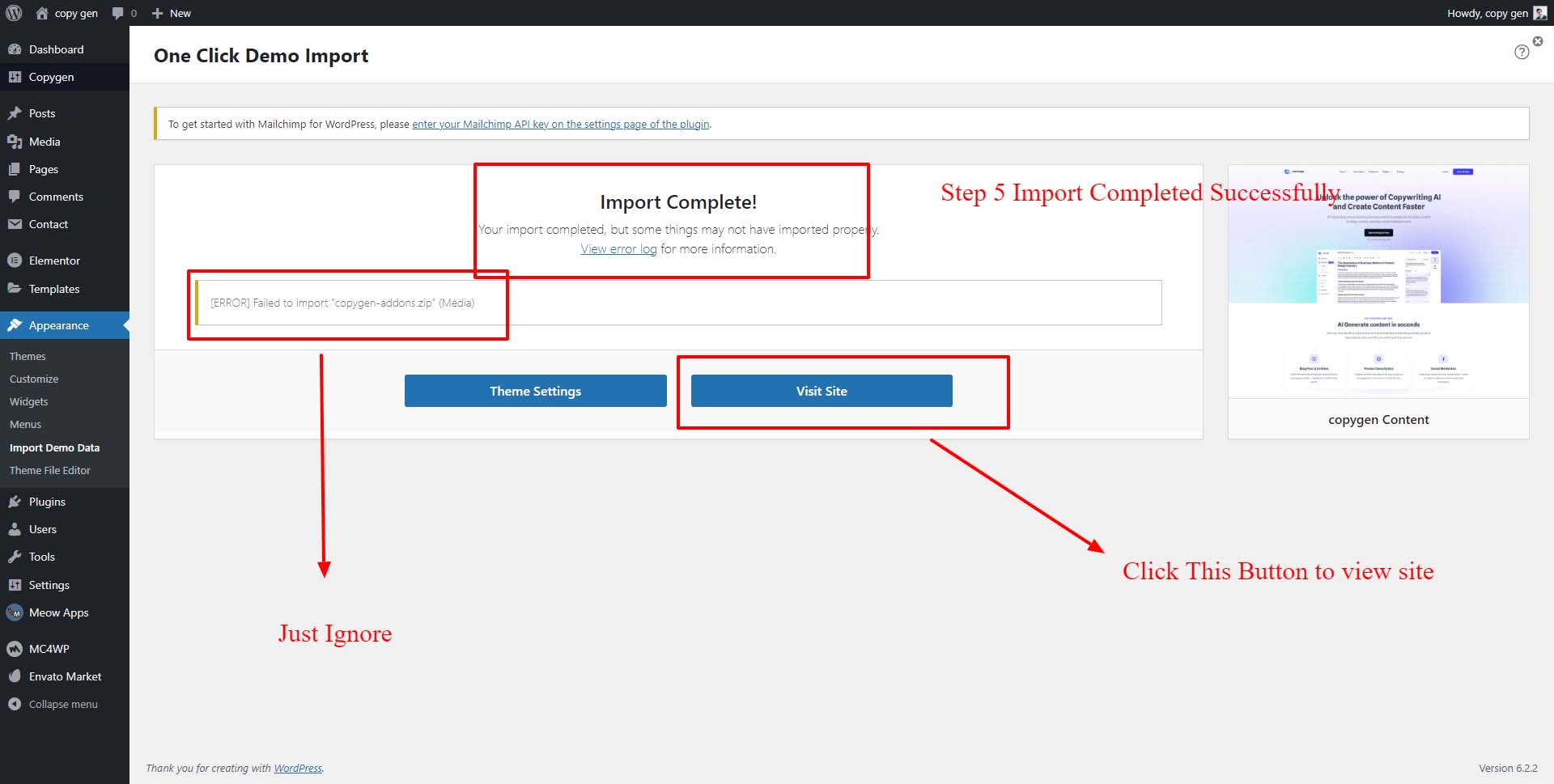
- After Insstall Pluigns => Go to Appearance > Import Demo Content.
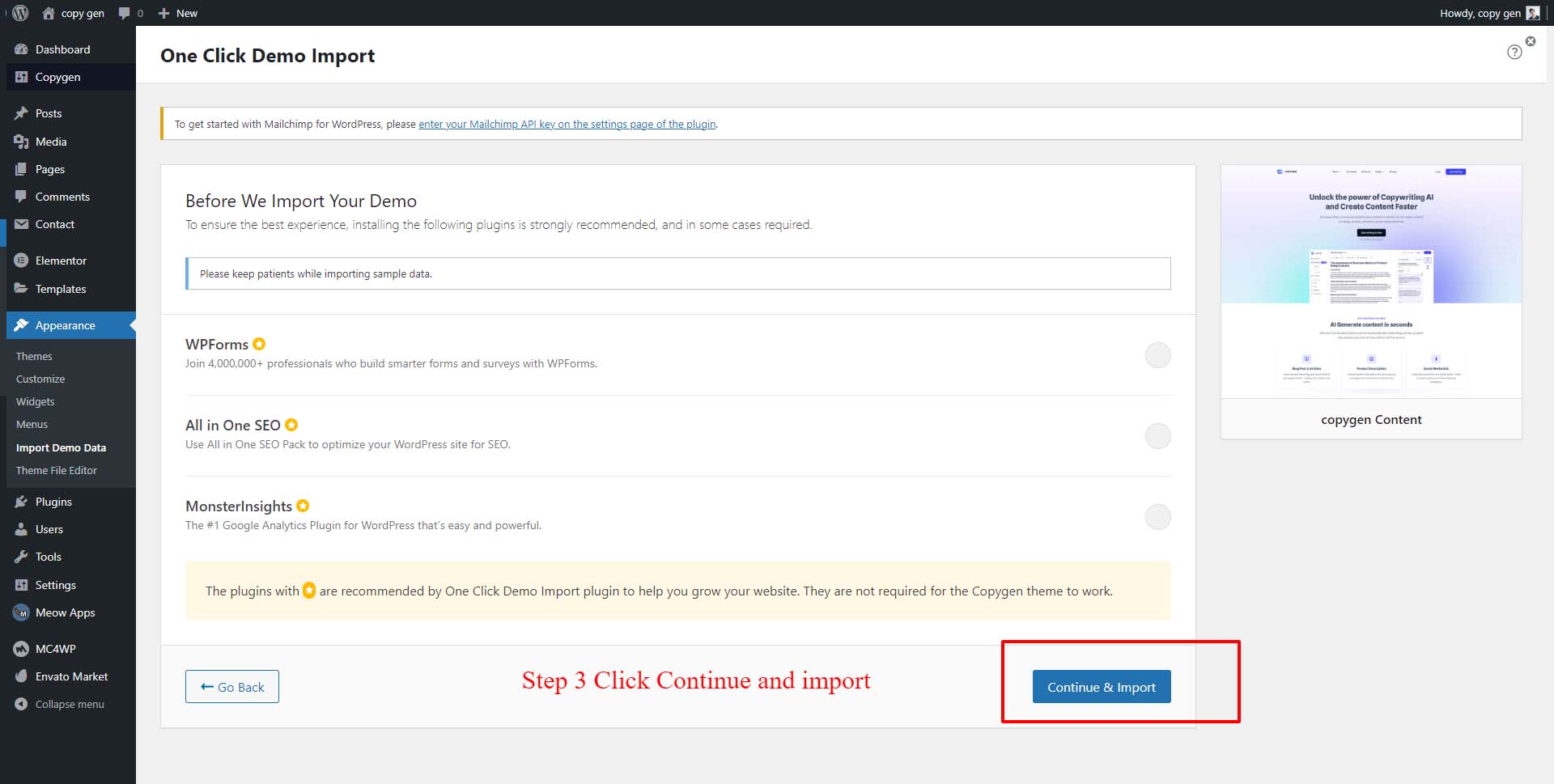
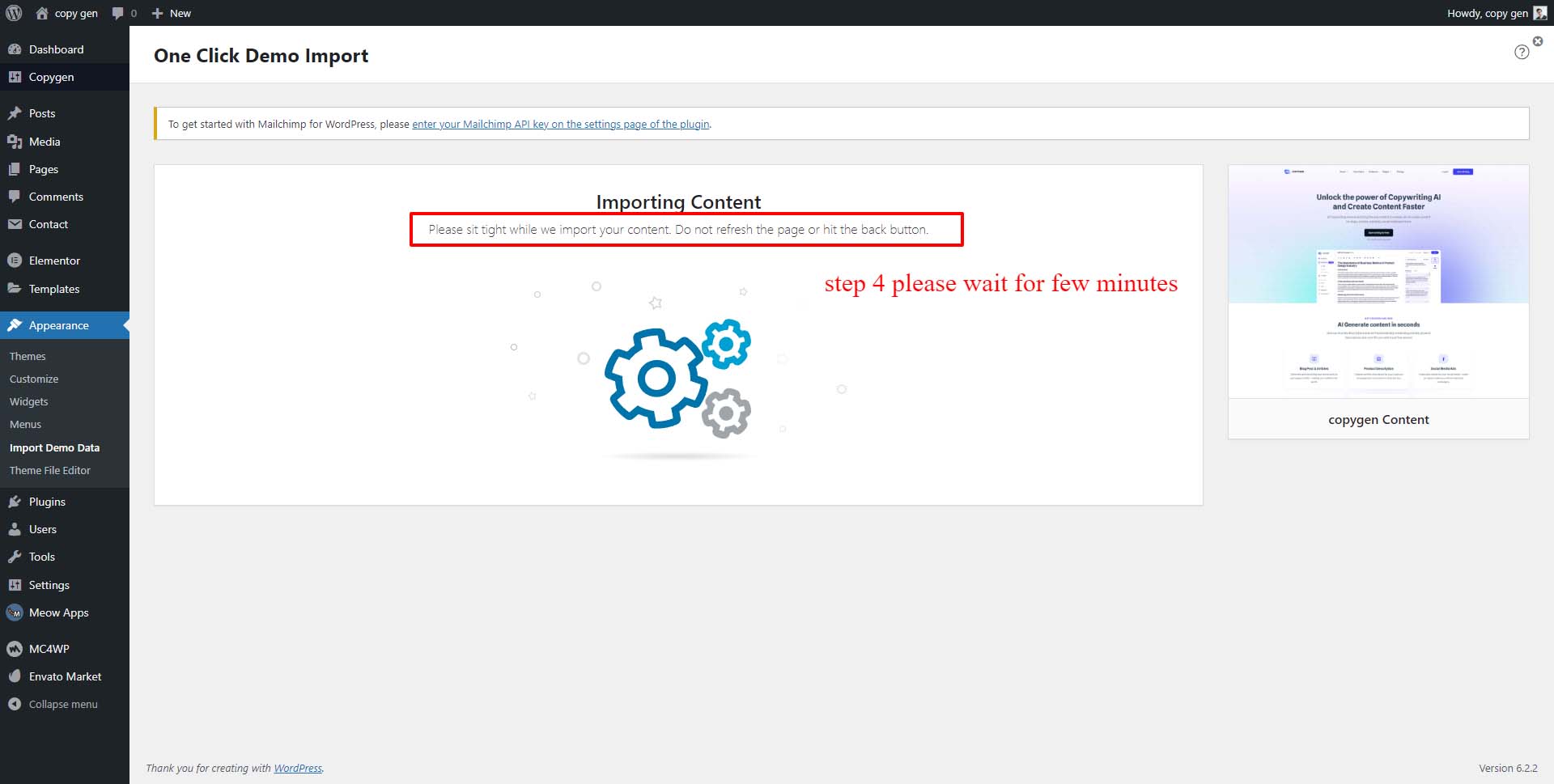
- Click Import Demo Content Button it will take to another tab then click continue and wait for few minutes to import
# Follow this video to regenerate the elementor files after import ( Regenerate Elementor css is More important to fix footer collapsed )
Regenerating CSS: This can easily be fixed by going to WP admin > Elementor > Tools > Regenerate CSS. Then, you can clear the cache (WP cache and browser cache) and refresh the page. Clearing Site Cache: Check if you have any caching plugins on your site or any server level caching enabled. Clear those caches.
- On Your Dashboard go to Elementor > Tools > Regenerate CSS
# Follow the steps to Update theme
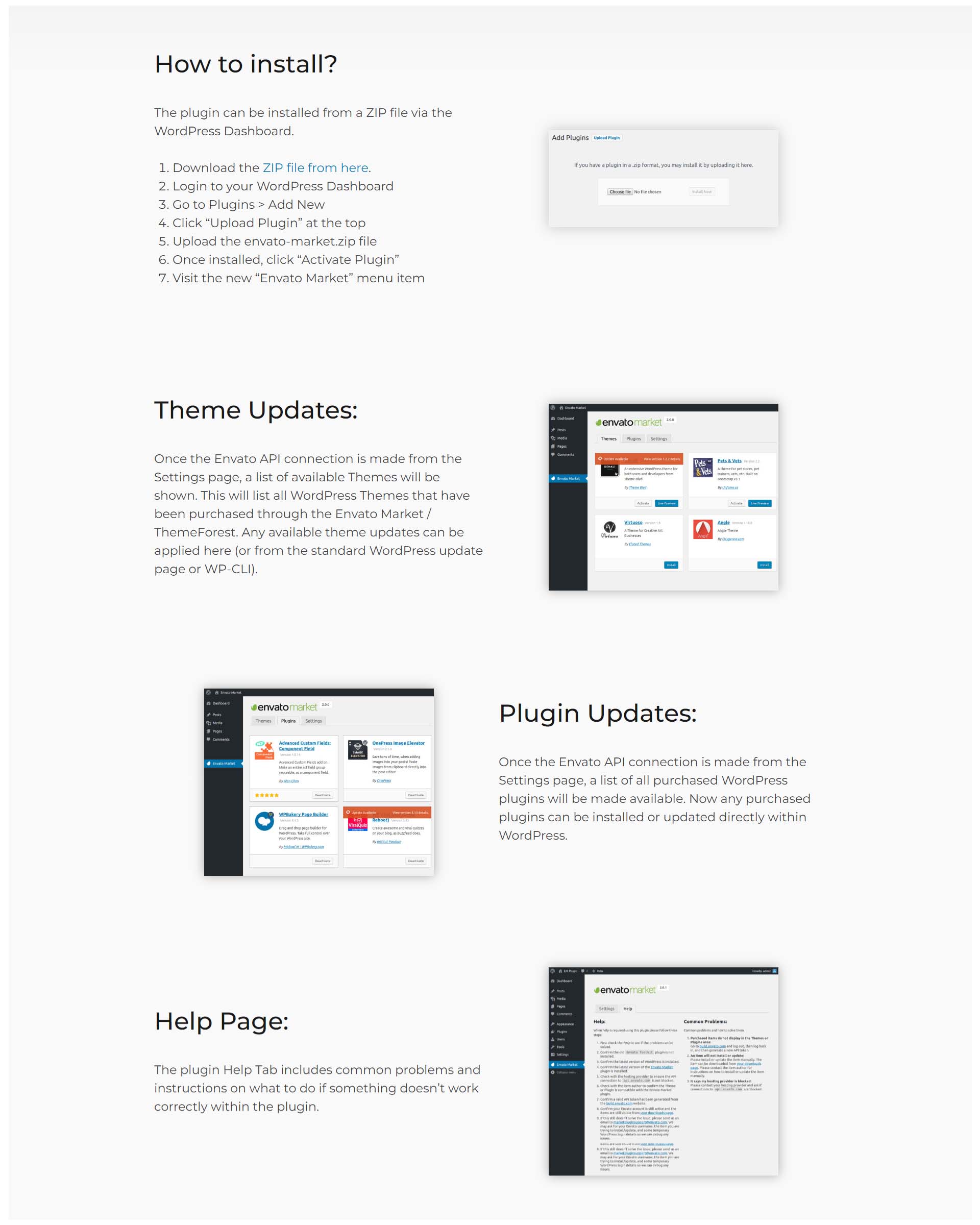
1) Updating the theme by using envato-market Plugin
If you are updating the Copygen theme, please follow the steps below to update it. These steps are straightforward and easy to follow.
1) To Get Theme Update Automatically
- We include envato-market pluign via our theme so please install that also to recieve auto updates
- Here you can Download the update version envato-market pluign -- https://envato.com/market-plugin/
2) Please follow these steps to perform a manual update theme via WordPress:
- First Download Latest Installable theme from here.
- Login to your WordPress Dashboard.
- Go to Appearance > Themes
- Click Add New button on top of the page.
- Then click Upload Theme
- Upload the file you’ve downloaded from ThemeForest in step 1 and click Install Now
- After done installing, click Replace current with uploaded button
- That's It.
3) Please follow these steps to perform a manual update theme via FTP:
- First, download the latest installable theme by visiting the following link: https://themeforest.net/downloads.
- After downloading the theme package, extract it on your computer
- Navigate to the "wp-content/themes/" directory on your server.
- Locate the folder corresponding to the theme you want to update.
- Rename the existing theme folder to something like "theme-name-old" as a backup.
- Upload the new theme folder from your computer to the "themes" directory on the server.
- Once the upload is complete, the new theme folder should replace the old one.
- Visit your WordPress admin panel and go to "Appearance" -> "Themes."
- You should see the updated theme listed. Activate it to apply the changes.
# Child Theme Upload And Activation
You Will find Child theme on Copygen Package folder => copygen-child.zp
Click here to know uses of Child Theme
- Navigate to Appearance → Themes in your WordPress admin dashboard.
- Click the Add New button at the top of the page then go for the Theme Upload option.
- For the file upload, pick Theme Files Copygen-child.zip in the theme package downloaded from ThemeForest and click Install Now.
- Click Activate once the upload has finished and you're ready for the next step: Installing the Plugins.